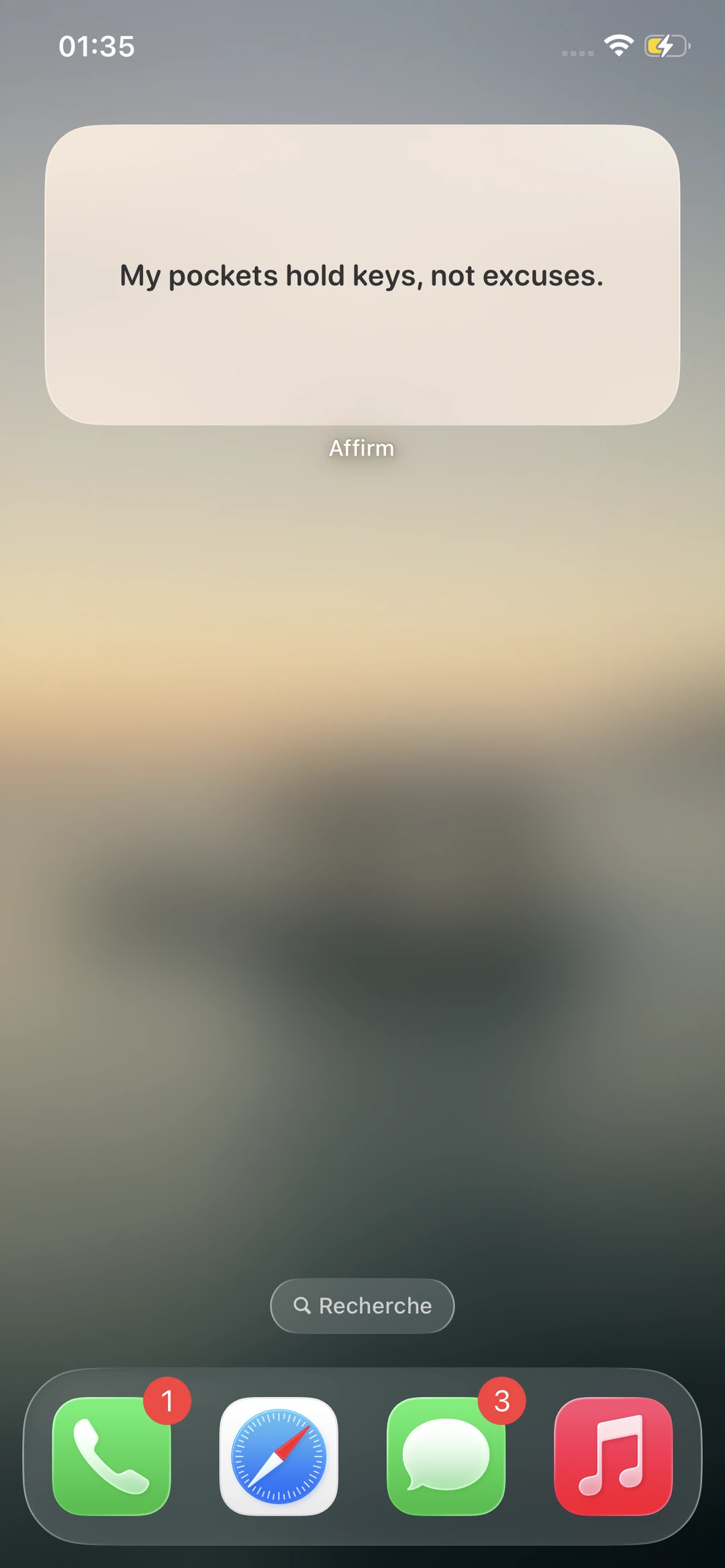
What the Spit widget does
Once placed on your screen, the Spit widget shows a different affirmation each day, picked from the categories you enabled in-app. No need to open the application — you read it at a glance, in passing.
The widget comes in two sizes: a medium square (ideal for the Home Screen, alongside your other widgets) and a vertical strip for the Lock Screen (since iOS 16). Both are free and included in the app.
Add the widget to the Home Screen
- Download and install the Spit app from the App Store first, and open it once to set your preferred categories.
- Go back to the iPhone Home Screen. Long-press (1 second) on an empty area or an icon — apps start to wiggle.
- Tap the « + » button in the top-left corner.
- Type « Spit » in the search bar at the top, or scroll through the widget list.
- Pick Spit, choose a widget size (Small / Medium / Large), then tap « Add Widget ».
- Drag the widget where you want it, and tap « Done » in the top-right to confirm.
Add the widget to the Lock Screen
- Long-press your Lock Screen (Face ID active).
- Tap « Customize » under the screen that appears, then select « Lock Screen ».
- Tap the widgets area just below the time.
- Pick Spit from the list — choose the strip or rectangle widget depending on the space you have.
- Exit edit mode by tapping « Done » in the top-right.
Widget not showing in the list?
Three possible causes: (1) the Spit app isn't installed — make sure it's actually on your iPhone; (2) you never opened the app after installing — open it once so iOS detects the widget; (3) your iOS version is below 14 — the version widgets shipped in — update via Settings → General → Software Update.
If after all that the widget still doesn't appear, restart your iPhone (hold the side button + a volume button until the slider appears). In 95% of cases, the restart makes it show up.
Customizing what the widget displays
Open the Spit app, go to Settings → Categories, and enable or disable the categories that should feed your widget. If you enable only « Morning » and « Confidence », the widget will draw from those two. That's your main customization.
Combine widget + notifications
The widget is passive — it shows up when you look at your phone. To go further, enable notifications in Settings → Notifications. You can schedule 1 to 10 reminders per day, on a window you choose. Combined, widget and notifications give you regular exposure without becoming intrusive.
Which widget size should you use?
On the Home Screen, the medium widget leaves enough room for the affirmation while fitting neatly beside your apps. On the Lock Screen, choose the rectangular format for more text or the compact format if you already use several widgets. You can install both at once: they share the same categories and update automatically.
Does the widget drain the battery?
No. iOS controls how often widgets refresh and prevents them from running continuously in the background. Spit prepares the next affirmation when the system allows it. You do not need to keep the app open, and closing it from the app switcher does not disable the widget.